 Desktamer
How to make your own desktop pet
Desktamer plays Codex pets: the little companions from OpenAI’s Codex app, which people draw and share on codex-pets.net. The format is open, so a pet you make works in Codex and in Desktamer, on Mac, Windows and Linux alike.
There are two ways to make one. A single animated GIF takes minutes. A full spritesheet takes longer, and gives your pet every move: walking both ways, waving, jumping, napping. Desktamer’s own starters, the Knight, the Wizard and the Fox, are full spritesheets made this way. Everything below matches Desktamer 0.7.1, as of 9 October 2026.
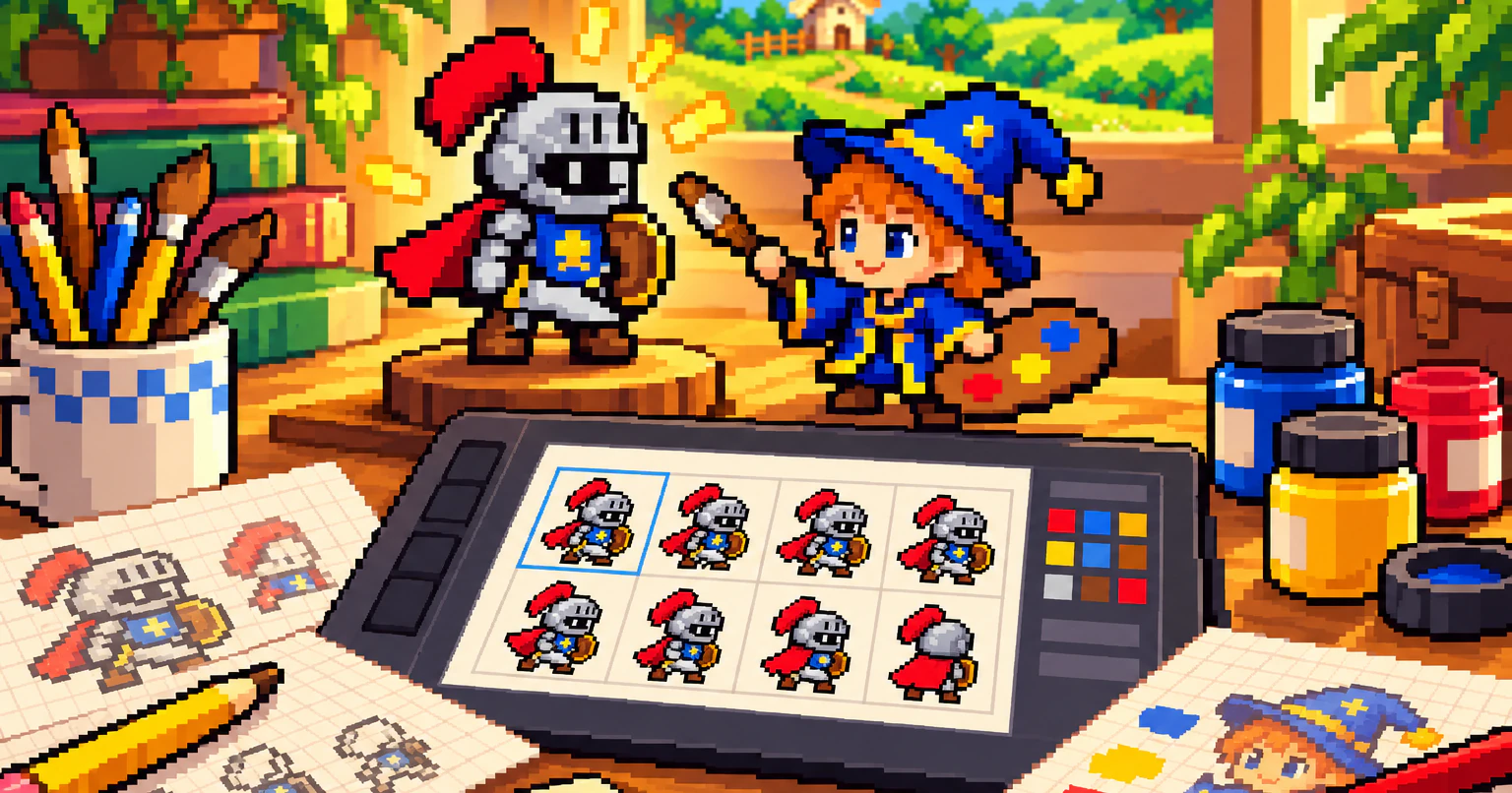
The quick way: one GIF
Drop an animated GIF or WebP on Desktamer’s Pets tab. Desktamer turns it into a sprite grid once, keeps each frame’s timing, and plays that one loop for everything: the pet walks with it, hops instead of jumping, and loops instead of napping. When it walks the other way, it’s mirrored. Tell it which way it faces in the pet’s inspector.
A few things help:
- A transparent background. Clicks go through the see-through parts of a pet, and anything opaque looks like a box on your desktop.
- Pixel art stays sharp. A GIF is scaled without smoothing. A WebP is too, if it has fully clear or fully solid pixels and 256 colours or fewer.
- Big frames are shrunk to 512 px on their longest edge, and very long loops are thinned to 240 frames. A GIF or WebP bigger than 4096×4096 is turned down.
Try one here before you buy anything. Drop a GIF, or a Codex spritesheet, in the box, and it walks out onto this page:
The full pet: a Codex spritesheet
A spritesheet is one image holding every frame, in a grid of 8 columns and 9 rows. Each cell is 192×208 pixels, so the sheet is exactly 1536×1872. There’s also a newer layout with 11 rows (1536×2288), whose two extra rows let a pet look toward your pointer.
Here is Desktamer’s Knight, with the grid drawn in. The checks are the transparent parts.
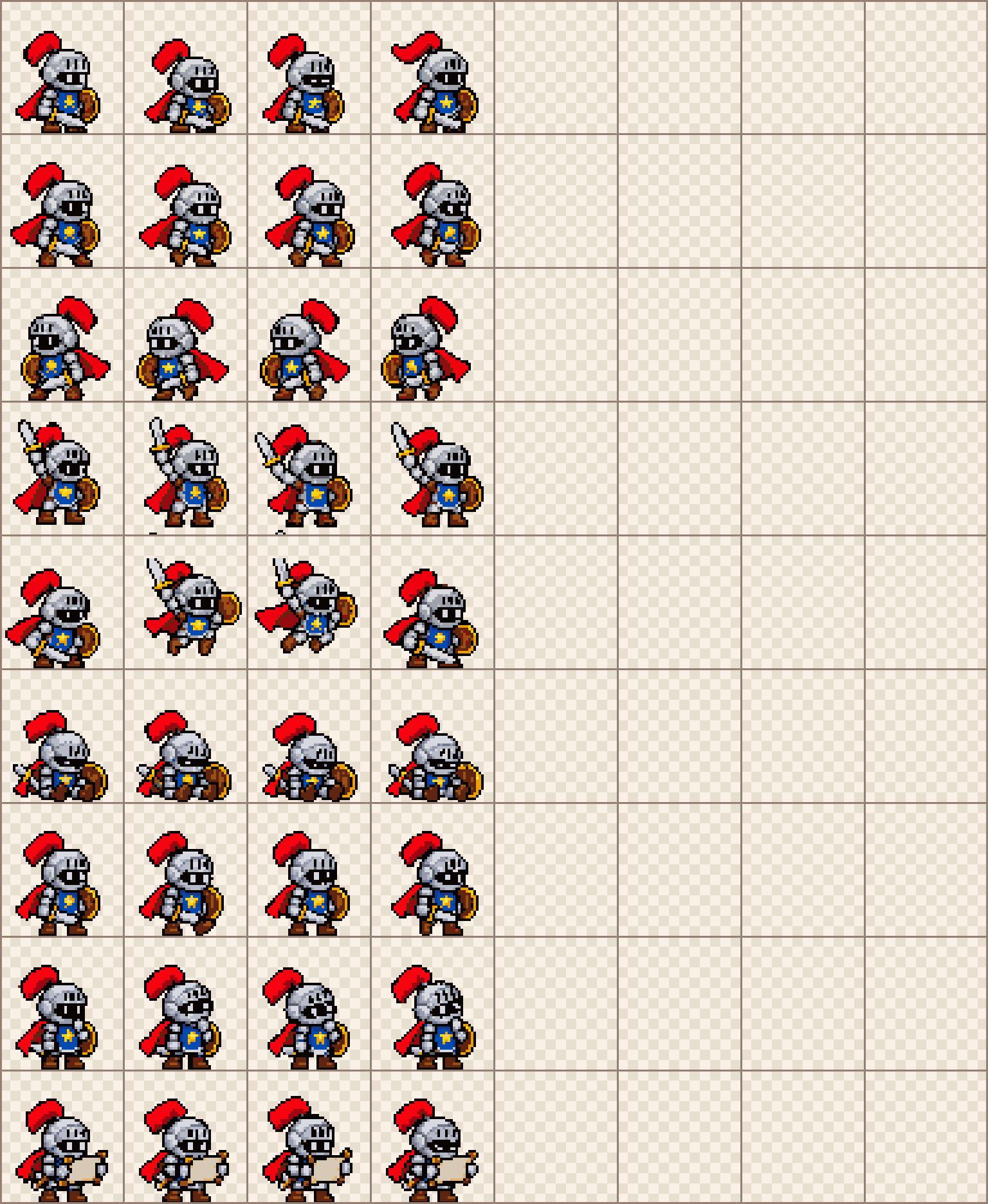
Each row is one animation, and every row starts in the left column:
| Row | Name | Frames | What Desktamer plays it for |
|---|---|---|---|
| 0 | Idle | 6 | Standing about between things |
| 1 | Run right | 8 | Walking right |
| 2 | Run left | 8 | Walking left |
| 3 | Waving | 4 | Hovering, waving hello, being dragged |
| 4 | Jumping | 5 | A click. A fall holds the middle frame, and landing plays the last two |
| 5 | Failed | 8 | Napping: it plays once, holds the last frame, and plays backwards to wake up |
| 6 | Waiting | 6 | Pauses, and turning down food |
| 7 | Running | 6 | Pauses, and eating |
| 8 | Review | 6 | Pauses |
| 9–10 | Look | 8 + 8 | Only in the 11-row layout: sixteen directions to follow your pointer |
The frame counts are the most a row holds. You can use fewer, as the Knight does: Desktamer counts a row up to its last drawn cell and ignores the empty ones after it.
Drawing tips
- Keep the background transparent, and leave unused cells fully empty.
- Keep the feet level. Desktamer stands each row on its lowest pixel, so a foot that dips lower in one frame leaves the other frames floating.
- Draw a full step in the run rows. Walking frames advance with the distance the pet covers, not with time, so a complete step cycle looks right at any speed.
- Face the right way. Row 1 faces right and row 2 faces left. If they’re swapped, Desktamer notices and mirrors them.
Any pixel editor works: Aseprite, LibreSprite and Piskel all export a PNG. Drawing a Shimeji instead? Its 46 separate pictures are a different format: here’s how to make a Shimeji, with a template for all 46.
pet.json
Next to the sheet goes a small pet.json that names the pet:
{
  "id": "pebble",
  "displayName": "Pebble",
  "description": "A small grey cat who naps a lot.",
  "spritesheetPath": "spritesheet.png"
}
idordisplayName: one of them is needed. The id becomes the pet’s folder name.description: optional, up to 400 characters.spritesheetPath: the sheet’s file name, next topet.json. Without it, Desktamer looks forspritesheet.webp.spriteVersionNumber:2for the 11-row layout. Leave it out for 9 rows.
The sheet can be a PNG, WebP or GIF of up to 40 MB.
Put it in Desktamer
Put pet.json and the sheet in a folder, then do any one of these:
- Drop the folder on the Pets tab, or zip it and drop the
.zip. - Put the folder in
.codex/petsin your home folder, where Codex keeps its pets. Desktamer finds it there by itself and plays it from where it is, so edit it in place. - Import from URL takes a codex-pets.net pet page, or a direct link to a zip or a spritesheet.
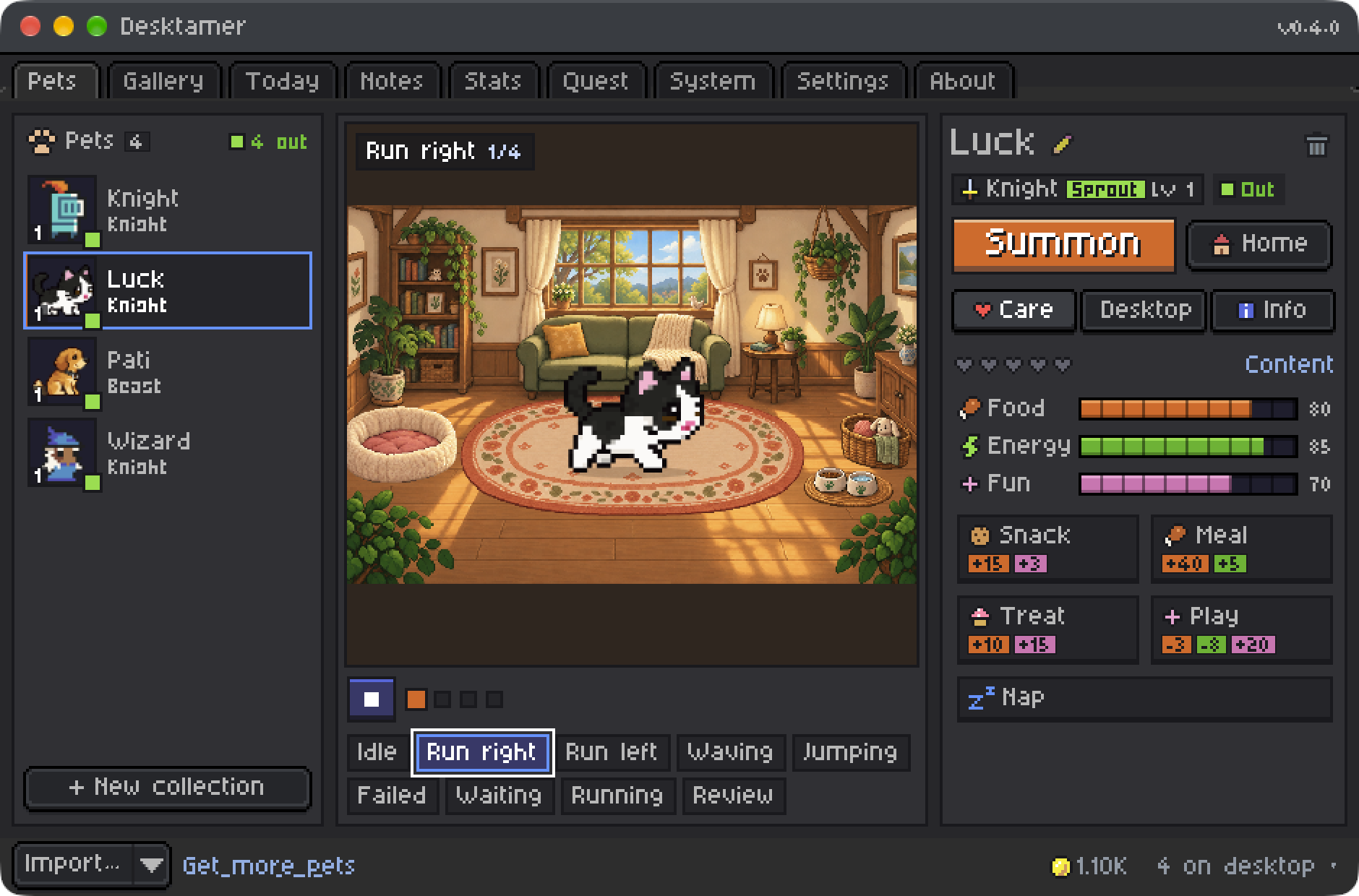
Once it’s in, the Pets tab has a button for each row, so you can play them one at a time and check your drawing.
Changed your drawing? Import the pet again. Desktamer sees it already has a pet with that id and asks: Replace, Keep both, or Skip. A replaced pet waits in the Trash for 7 days, in case you want it back.
If it won’t import
Desktamer says what’s wrong. The ones you’re most likely to see:
- “this 1500×1800 image isn’t animated and isn’t a Codex spritesheet (expected 1536×1872 for v1 or 1536×2288 for v2)”: the sheet’s size is off. Check the canvas size, not just the grid.
- “pet.json needs an id or a displayName”: add either one.
- “spritesheet has 11 rows but pet.json says spriteVersionNumber 1”: remove
spriteVersionNumber, or set it to 2. - “missing spritesheet …”:
spritesheetPathdoesn’t match the file’s name. - “this 5000×5000 animation is too large (at most 4096×4096)”: shrink the GIF’s canvas before you import it.
To find out before you import, drop the pet in our free Codex pet checker. It says what Desktamer would, plays every row, and fixes run rows that face backwards.
Share it
codex-pets.net takes uploads, with stricter rules than Desktamer’s: the sheet must be a WebP named spritesheet.webp, and pet.json needs an id, a displayName of up to 80 characters and a description of up to 280. Once it’s there, anyone can find it in Desktamer’s Gallery tab and bring it home in one click.