 Desktamer
How to make a Shimeji: a free template and all 46 poses
Every Shimeji character, from a game’s hero to someone’s cat, is the same program with different pictures. So making your own is mostly drawing: 46 small poses in a folder. Here’s the template, what each picture is for, the few rules they all follow, and how to test and fix your character. It all comes from Shimeji-ee’s own files, its readme and conf/actions.xml in the download from kilkakon.com, as of 26 October 2026. We make Desktamer, a different kind of desktop pet, so it comes up once, at the end.
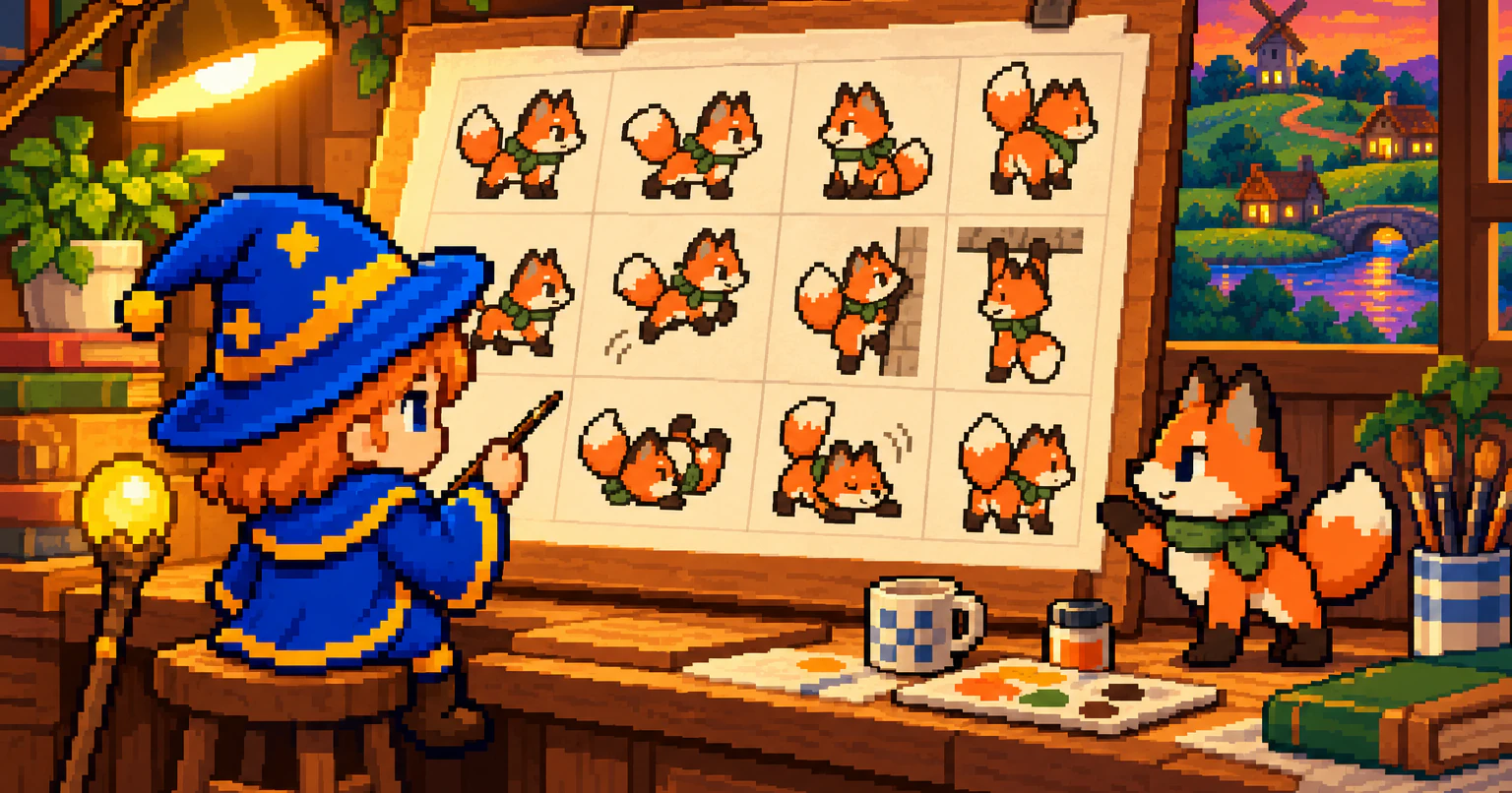
Is there a template for making a Shimeji?
Yes: the classic Shimeji that comes with Shimeji-ee. Its folder, img/Shimeji, holds the 46 pictures every character needs. Shimeji-ee’s readme says to make new versions of shime1.png to shime46.png, with the same names, and to “refer to img/Shimeji for the proper character positions.”
If you’d rather draw on one canvas, here’s ours: all 46 on one sheet, numbered and named, with the line each pose touches and the point Shimeji-ee places it by. It’s free for any character, and you don’t need to credit us.
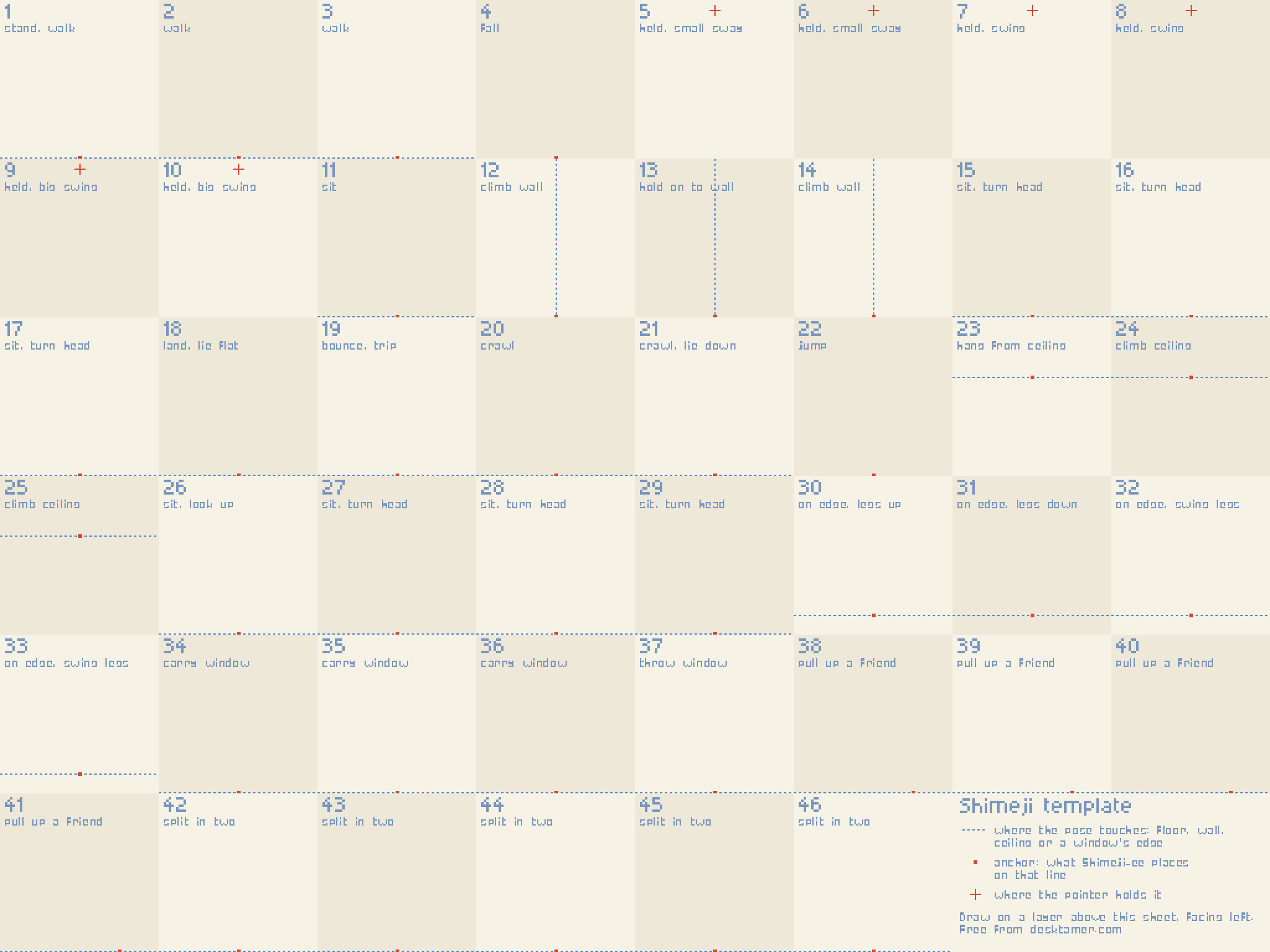
Download the Shimeji template (PNG, 1024×768)
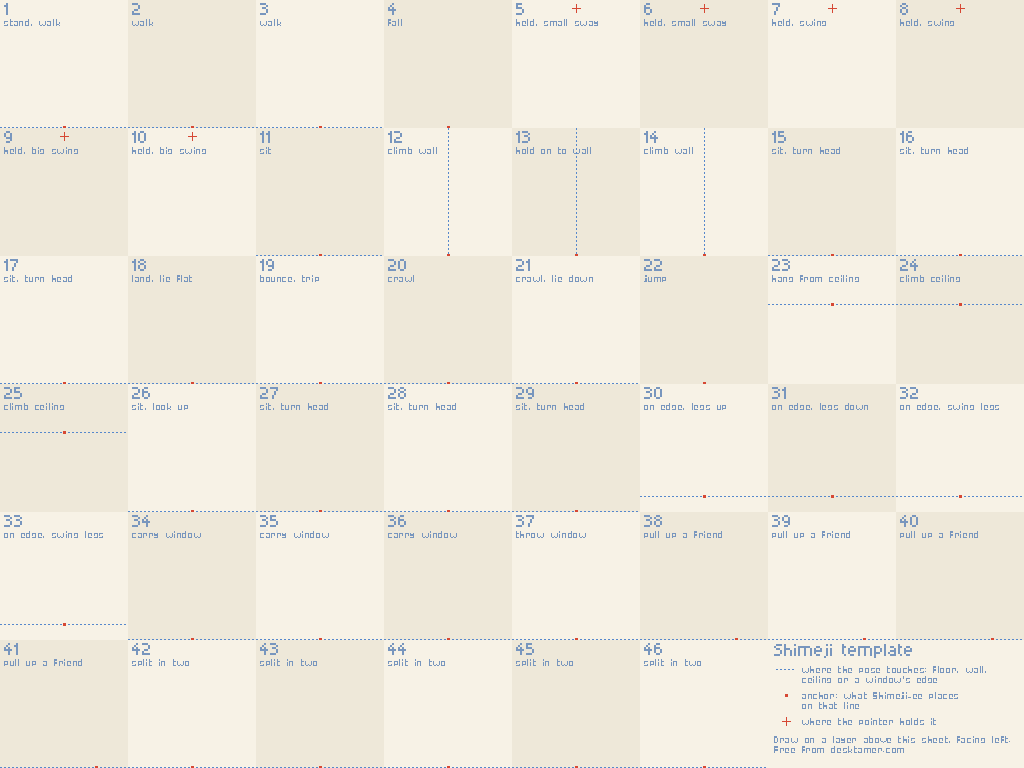
Draw on a new layer above the sheet, and hide the sheet before you export, so its lines and numbers stay out of your pictures. The last two cells hold the key, not poses. Cutting the sheet into 46 files is a few clicks in Aseprite.
What you need
- Shimeji-ee, free from kilkakon.com, and Java 8, to try your character in. It runs on Windows: here’s how to get it running. On a Mac or Linux, Shijima-Qt and Shimeji-Desktop run Shimeji-ee characters instead: every way to run Shimeji.
- A drawing app with layers that saves transparent PNGs. Aseprite, LibreSprite, Krita and GIMP all do, and the last three are free.
- Some evenings. 46 pictures is a lot, but many are near-copies: the walk is the standing pose with its legs moved, and eight pictures are one sitting pose with the head in different places.
The rules every picture follows
- 46 PNG files, named
shime1.pngtoshime46.png. Shimeji-ee’sactions.xmlasks for each one by name, and every picture it names has to be there, or your character won’t load. - 128 by 128 pixels, like the classic set. Every anchor point in
actions.xmlis measured on that size. For a bigger character, see bigger, smaller, or not symmetrical. - A transparent background. Shimeji-ee draws every pixel that isn’t transparent, so a white background becomes a white box walking around your screen.
- Facing left. Shimeji-ee walks left with your pictures as drawn, and mirrors them to walk right. Anything that shouldn’t flip, like writing on a shirt, will.
- The same spot every time. Shimeji-ee doesn’t look at your drawing to place it. It puts one point of each picture, its anchor, on the floor, the wall or the ceiling. A character whose feet sit 5 pixels higher in one picture hovers 5 pixels in the air whenever that picture shows.
Here’s what each pose touches, and its anchor, counted in pixels across and down from the top-left corner:
| Pictures | What it touches | Anchor |
|---|---|---|
| Most of them | The floor, along the bottom edge | 64,128, the middle of the bottom edge |
| 12–14 | A wall on its left, down the middle | 64,128 |
| 23–25 | The ceiling, 48 pixels from the top, with the body hanging below | 64,48 |
| 30–33 | An edge it sits on, 16 pixels above the bottom, legs hanging over | 64,112 |
| 38–41 | The floor | 96,128, to leave room for the Shimeji it pulls up |
| 5–10 | Nothing: you’re holding it | The pointer holds it 120 pixels above the anchor, at 64,8 |
Our template marks all of these. With the classic set, open its picture beside yours and match where it touches.
What each of the 46 pictures shows
| Picture | Pose | When Shimeji-ee shows it |
|---|---|---|
| 1 | Standing | Standing still, every other step of a walk, and hanging still from your pointer |
| 2, 3 | Walking | Walking, running and dashing, as 1, 2, 1, 3 |
| 4 | Falling | Dropping in, falling off something, and flying after you throw it |
| 5–10 | Dangling | While you drag it. The farther its feet trail behind the pointer, the bigger the swing: 5 and 6 a little, 7 and 8 more, 9 and 10 the most. Odd numbers have the feet left of the pointer, even ones right. 5 and 6 also take turns when it wriggles to get free |
| 11 | Sitting | Sitting on the floor or on a window |
| 12–14 | On a wall | 13 holding on, all three climbing |
| 15–17 | Sitting, head turning | Spinning its head, with 26–29 |
| 18 | Lying flat | Landing: it bounces between 18 and 19 |
| 19 | Tumbling | Bouncing as it lands, and tripping while it chases your pointer |
| 20, 21 | Crawling | Crawling along. 21 on its own is lying down |
| 22 | Jumping | Leaping onto walls and windows |
| 23–25 | On the ceiling | 23 hanging on, all three climbing along |
| 26 | Sitting, looking up | Looking up, and watching your pointer |
| 27–29 | Sitting, head turning | Spinning its head: 26, 15, 27, 16, 28, 17, 29, then 11 |
| 30–33 | Sitting on an edge | On a window or the taskbar: 30 legs up, 31 legs down, 32 and 33 swinging them |
| 34–36 | Carrying a window | Walking off with a window held up. 36 also when it falls holding one |
| 37 | Throwing a window | Throwing it away |
| 38–41 | Pulling up a friend | Pulling another Shimeji up from below the floor |
| 42–46 | Splitting in two | Turning into two of itself |
In actions.xml, a window is an “IE”: WalkWithIe and ThrowIe are pictures 34–37. Shimeji-ee shows only the pictures actions.xml asks for, so these 46 are the classic set’s. A character with its own actions.xml can have more, or fewer.
How to make your Shimeji, step by step
- Copy the classic set. In your Shimeji-ee folder, copy
img/Shimejiand name the copy after your character, such asimg/Sprout. - Draw the standing pose first. Open
shime1.png, draw your character on a new layer over the classic one, with the feet in the same spot, then delete the classic layer. Save it asshime1.pngagain, as a PNG with transparency. - Draw the walk, 2 and 3, and try it (step 6) before anything else. If the walk looks right, your size and spot are right, and the other 43 will line up the same way.
- Fill in the rest, most-seen first: 4 (falling), 11 (sitting), 5–10 (dangling), then the walls, the ceiling and the edges.
- Not drawing them all yet? Copy your
shime1.pngover the numbers you haven’t drawn, so the classic Shimeji doesn’t pop up in the middle of your character’s moves. - Try it. Move
img/Shimejiintoimg/unused, which Shimeji-ee skips, so only your character drops in, and start Shimeji-ee. Right-click your character and use Set Behaviour to make it do each move: Hold onto Ceiling, Sit While Dangling Legs, Split into Two and so on. Pause Animations, in the same menu, freezes it so you can look closely.
Cutting our template into 46 files
Draw on a layer above the template, then hide the template and export your layer as one PNG, 1024×768. In Aseprite:
- Choose File > Import Sprite Sheet, pick your PNG, and set the width and height to 128, with the sheet read by rows. Each cell becomes a frame, 48 in all.
- Delete frames 47 and 48, the key.
- Choose File > Export > Export As and name the file
shime1.png. Aseprite saves one file per frame, counting up from the number:shime1.png,shime2.pngand on toshime46.png.
In another app, crop each cell to its own 128×128 file and name it by its number.
Bigger, smaller, or not symmetrical
- Bigger on screen, same pictures. Shimeji-ee’s Settings window has a Scaling slider, up to 8 times. It scales every Shimeji you run, and keeps pixel art sharp unless you choose one of its smoothing filters.
- Drawn bigger. For 256×256 pictures, give your character its own
actions.xml(below) and double every number in itsImageAnchors:64,128becomes128,256. Double theVelocitynumbers too, or it’ll seem to walk at half speed for its size. - Not symmetrical. A sword in one hand, or a side parting, swaps sides when Shimeji-ee mirrors your character to walk right. In your own
actions.xml, give a pose anImageRight, such as<Pose Image="/shime1.png" ImageRight="/shime1r.png" ImageAnchor="64,128" … />, and drawshime1r.pngfacing right. Shimeji-ee shows that picture instead of mirroring.
Change how it moves
A character can have its own moves. Copy conf/actions.xml and conf/behaviors.xml into img/Sprout/conf/, and Shimeji-ee uses them for that character only.
actions.xmllists each move as a run of poses. A pose names a picture, itsImageAnchor, aVelocity(how many pixels it moves each tick, across and down, so-2,0is 2 to the left) and aDurationin ticks. A tick is 40 milliseconds, 25 to a second: the classic walk shows each picture for 6 ticks, about a quarter of a second.behaviors.xmlsays how often each move happens, by itsFrequency. Set one to 0 and your character never does it.
Shimeji-ee’s readme warns that editing these files is fairly easy but writing new ones “requires a lot of trial and error”, so change a copy, a little at a time. For moves between two Shimeji, such as a hug, Kilkakon has an affordances tutorial.
If your Shimeji looks wrong
- It floats above the floor, or sinks into it. Its feet aren’t on the bottom edge. Move the drawing, not the canvas: the picture stays 128×128.
- It walks around inside a box. The background isn’t transparent. Delete the background layer and save as PNG. A JPEG renamed to
.pngcan’t be transparent. - It bobs or slides between frames. The feet are in a different spot in each picture. Lay the pictures over each other, as layers or with onion skin in Aseprite or Krita, and line the feet up.
- It walks backwards. It’s drawn facing right. Flip all 46 pictures horizontally.
- It never shows up, or Shimeji-ee says “Failed to load image”. A picture is missing or misnamed, and the message names it. Look for
shime01.pngorshime1.png.png(Windows hides file extensions unless you ask to see them), and check theShimejiLogfile in the Shimeji-ee folder. - The Image Set Chooser shows no picture for it. The chooser shows
shime1.png, so that one has to be there. - The classic Shimeji drops in too. Its folder is still in
img. Move it intoimg/unused.
Share it
Zip your character’s folder, img/Sprout, with its conf folder if you made one. Leave Shimeji-ee itself out: a zip of pictures is one people can trust, and the program is best fetched from kilkakon.com. Kilkakon’s where to find characters page points to the Shimeji Desktop Pets group on DeviantArt, where new characters still go up.
Your character on a Mac or Linux, with no Java
Desktamer is our app. It doesn’t read Shimeji folders, and its pets don’t climb windows. But a character you drew for Shimeji can live in it, on a Mac, Windows or Linux, from a GIF:
- In your drawing app, put pictures 1, 2, 1 and 3 in an animation, in that order, and export it as a GIF with a transparent background.
- Drop the GIF on Desktamer’s Pets tab. Your character walks with that loop, hops instead of jumping, and keeps looping instead of napping. It turns around by mirroring, as in Shimeji: in the pet’s inspector, set Artwork faces to Left.
For more moves, lay your poses out as a Codex sprite sheet. Pictures 1 to 3 make its two run rows (mirrored for running right), the sitting and head-turning ones its pauses, and 11 then 21 a nap. How to make your own desktop pet has the layout, and you can download Desktamer with no account and no card.